> For the complete documentation index, see [llms.txt](https://docs.syncmate.com/llms.txt). Markdown versions of documentation pages are available by appending `.md` to page URLs; this page is available as [Markdown](https://docs.syncmate.com/getting-started/memberships.md).
# Memberships
Memberships enable team collaboration within Syncmate workspaces. Through the membership system, you can invite team members, assign roles, and collaborate on workflow development and execution.
## Understanding Memberships
Memberships connect users to specific workspaces and define their access level. Each membership includes:
* **User identity** - The team member's email and account information
* **Workspace access** - Access to the specific workspace they were invited to
* **Role permissions** - What actions they can perform within the workspace
* **Invitation status** - Either "pending" (invitation sent) or "accepted" (active member)
## Adding Team Members
To add new team members to your workspace:
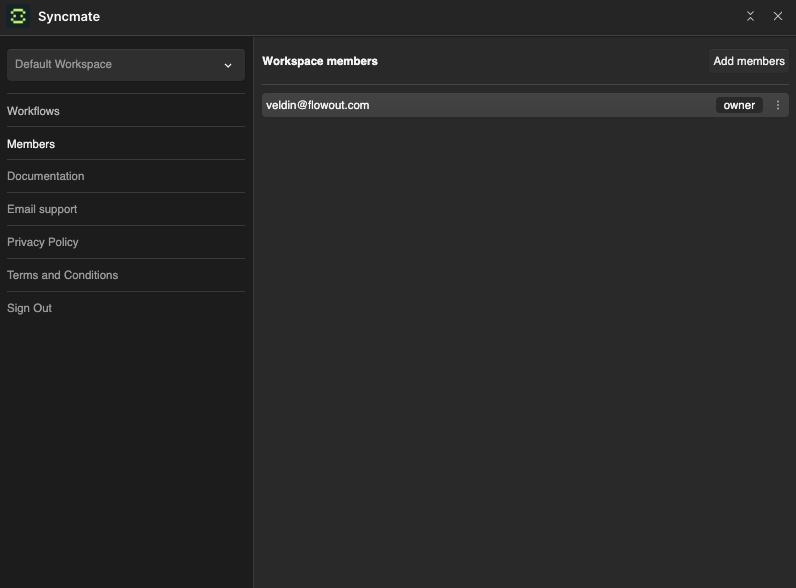
1. Navigate to the "Members" section from the left sidebar
2. Click "Add members" button in the top right
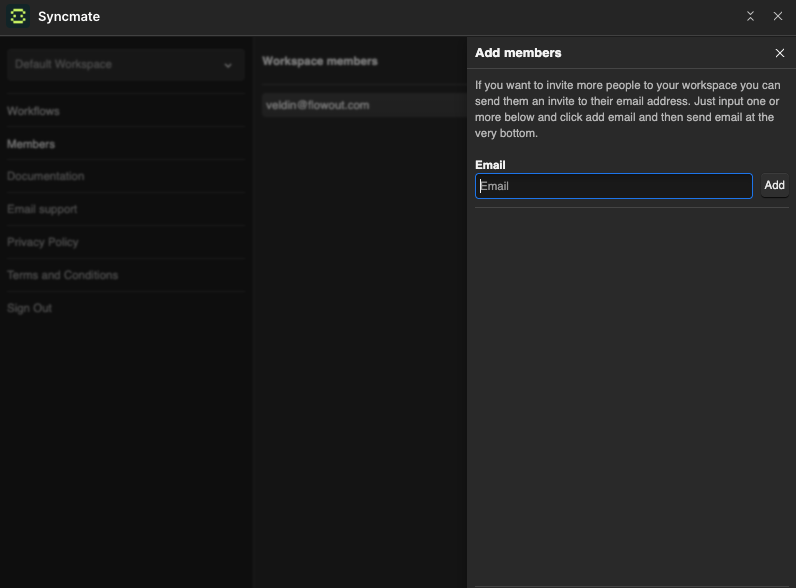
3. In the side panel, enter the team member's email address
4. Click "Add" to add them to the invitation list
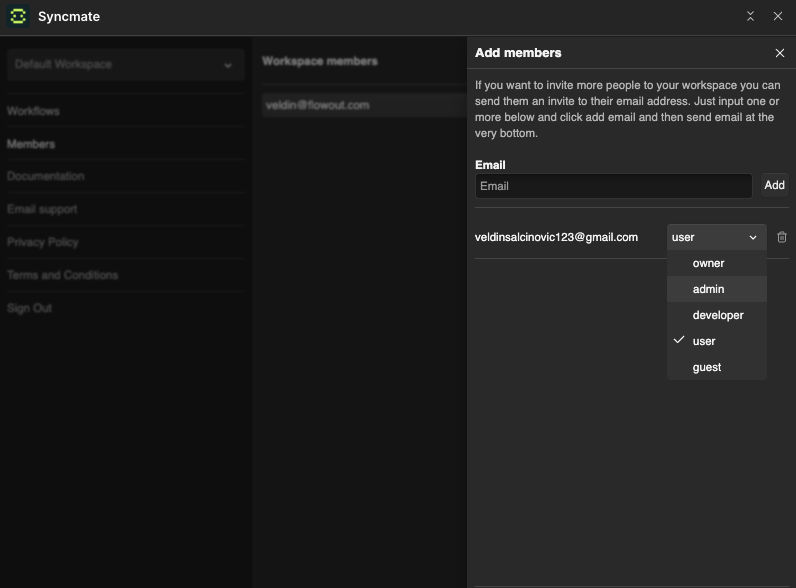
5. Select their role from the dropdown (defaults to "user")
6. Repeat for multiple members if needed
7. Click "Send invitations" to send email invitations to all added members
You can add multiple team members before sending the invitations, allowing you to batch invite your entire team at once.
## Membership Roles
Syncmate supports five membership roles with different permission levels:
### Owner
* Full access to all workspace features
* Can manage all team members and their roles
* Can delete the workspace
* Complete access to all workflows and settings
### Admin
* Can create, edit, and delete workflows
* Can invite and manage team members
* Can configure workspace settings
* Can view all execution history and logs
* Access to environment variable management
### Developer
* Can create, edit, and execute workflows
* Can view execution history for workflows
* Limited team member management capabilities
* Can access non-sensitive environment variables
### User
* Can execute existing workflows
* Can view workflow execution results
* Limited access to workflow editing
* Cannot manage team members or workspace settings
### Guest
* Read-only access to workflows
* Can view execution history and logs
* Cannot create, edit, or execute workflows
* Cannot access environment variables or team management
## Accepting Membership Invitations
When someone receives a membership invitation:
1. They receive an email with an invitation link
2. Clicking the link opens the Syncmate invitation page
3. They can sign in with an existing account or create a new one
4. Once authenticated, the invitation is automatically accepted
5. They gain immediate access to the workspace with their assigned role
The invitation system works seamlessly whether the invitee already has a Syncmate account or needs to create one.
## Managing Existing Members
In the Members section, workspace owners and admins can manage the team:
### Viewing Members
* See all workspace members with their email addresses
* View each member's current role
* See invitation status ("pending" for unaccepted invitations)
### Member Actions
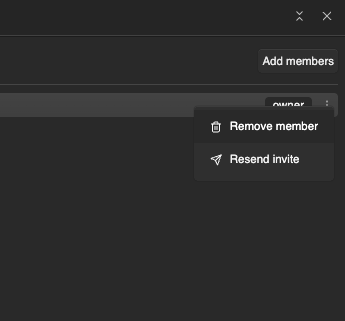
Each member has a menu (⋮) with available actions:
* **Remove member** - Revoke access and remove them from the workspace
* **Resend invite** - Send the invitation email again for pending invitations
### Member Status
Members show different statuses:
* **No status indicator** - Active member who has accepted their invitation
* **"pending"** - Invitation sent but not yet accepted
## Invitation Management
The system handles various invitation scenarios:
### Pending Invitations
* Show "pending" status next to the member's role
* Can be resent if the original email was missed
* Automatically convert to active membership when accepted
### Failed Deliveries
If an invitation email doesn't reach the recipient:
1. Use "Resend invite" from the member menu
2. Verify the email address is correct
3. Ask the recipient to check spam/junk folders
## Best Practices
### Role Assignment
* **Start with minimal access** - Begin with "user" or "guest" roles and promote as needed
* **Match roles to responsibilities** - Align permissions with actual job functions
* **Review regularly** - Periodically audit who has access and their roles
### Team Management
* **Clear communication** - Explain roles and expectations when inviting members
* **Onboarding process** - Provide guidance to new team members about workspace structure
* **Documentation** - Maintain clear documentation about workflow ownership and processes
### Security Considerations
* **Remove departed members** - Promptly remove access when team members leave
* **Monitor pending invitations** - Follow up on unaccepted invitations
* **Use appropriate roles** - Don't over-privilege team members beyond their needs
## Troubleshooting Invitations
### Common Issues
* **Email not received** - Check spam folders, resend invitation
* **Wrong email address** - Remove and re-add with correct email
* **Invitation expired** - Resend the invitation to generate a new link
* **Account conflicts** - Contact support if there are issues with existing accounts
The membership system is designed to make team collaboration seamless while maintaining proper access control and security.